If you leave Cursor on Auto and just assume it is quietly picking Claude, GPT, or Gemini in the background without much logic, that used to be a fair guess. It is not anymore. In July 2026, Cursor replaced Auto mode's routing logic with Cursor Router, a dedicated classifier that decides, request by request, which model actually works on your task (Cursor changelog).
For product managers and non-technical builders who rely on Cursor to ship without babysitting every model choice, this matters more than it sounds. Auto mode is the default most people never touch. If a hidden system is now making that call for you on every single prompt, it is worth understanding what it does and where it can go wrong.
Key Takeaways
- Cursor replaced Auto mode's guesswork with Cursor Router, a classifier trained on over 600,000 live coding requests that picks the model for every single prompt.
- The router reads four signals (the query, surrounding context, task complexity, and domain) to send simple edits to cheap models and complex engineering work to frontier reasoning models.
- Auto mode now splits into three explicit levers, Intelligence, Balance, and Cost, letting you control the trade-off between capability and spend on every request.
- Cursor's own benchmarks show Auto Balance beats Opus 4.8 on satisfaction at $4.63 per commit versus $7.34, with enterprise tests reporting 30-50% lower costs at comparable code retention.
- For product managers prototyping features or reviewing specs in Cursor, trust Auto for routine work but switch to Intelligence mode for high-stakes tasks, since the router optimizes for an average, not your specific case.
Learn this hands-on
Go from idea to a live product with real users. Build and ship your first SaaS with Claude Code in a live cohort, with auth, payments and deployment done by the end. Join the Ship Your First SaaS with Claude Code cohort.
What Cursor Router Actually Is
Before this release, Auto mode leaned on fairly simple heuristics to guess which model should handle a request. Cursor has now replaced that with a purpose-built classifier trained on more than 600,000 live coding requests, and validated across millions more in production use.
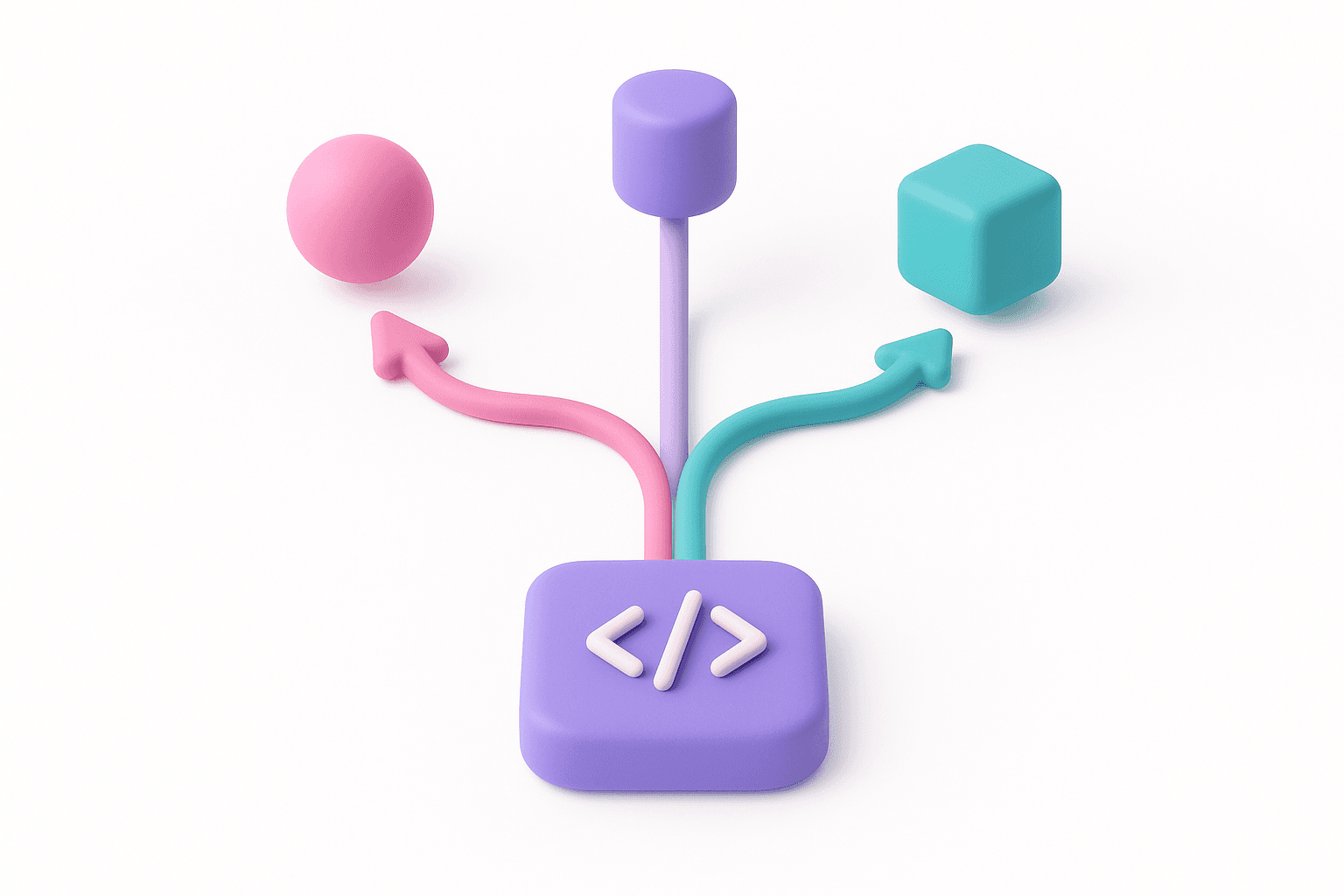
For every request, the router reads four signals:
- The query itself, what you are actually asking for
- The surrounding context, meaning the code and files involved
- The complexity of the task
- The domain of the work (for example, backend logic versus UI styling)
It combines those signals with what Cursor has learned about how each underlying model performs on similar work. A simple text edit gets routed to a cheaper, faster model. A UI or styling change goes to a model known for better design instincts. A long, multi-step engineering problem gets escalated to a frontier reasoning model.
That is a meaningfully different design than "always use the best model" or "always use the cheapest one." It is trying to match the tool to the job, automatically, on every single request.
The Three Modes: Intelligence, Balance, Cost
Auto mode is no longer a single setting. Cursor now exposes three modes along a spectrum:
- Intelligence aims for frontier-level output quality, closest to what you would get from the most capable premium models, for the hardest tasks.
- Balance matches the models most developers reach for day to day, while trimming cost.
- Cost prioritizes token efficiency while still targeting solid output quality.
This is the part non-technical builders should actually notice. You are not just picking "smart" or "cheap" anymore. You are picking how much you want the router to optimize for spend versus raw capability, and it applies that trade-off consistently across every request in a session. If you want a deeper playbook for tuning these trade-offs across your whole workflow, our Cursor AI best practices guide walks through it.
Should You Trust It?
According to Cursor's own published numbers, Auto Balance mode scores above Opus 4.8 on user satisfaction while costing about $4.63 per commit versus $7.34, and Auto Intelligence lands close to Cursor's top-tier Fable model at roughly 60% lower cost for teams. Early enterprise testing reportedly showed 30-50% lower costs compared to using premium models exclusively, with comparable or better code retention.
The evaluation method is worth noting too. Instead of relying purely on offline benchmarks, Cursor tested the router through live A/B testing across millions of real requests, tracking user satisfaction and how often generated code was actually kept rather than reverted. That approach also accounts for a cost simpler routing systems tend to ignore: the penalty of switching models mid-conversation, which invalidates cached context and adds latency.
So the short answer: for most day-to-day work, Auto mode with Cursor Router is a reasonable default. If you are also weighing whether an entirely different editor handles this better out of the box, our Windsurf vs Cursor comparison breaks down how the two approach automated model selection. It is not a black box guessing at random, it is a system tuned against real usage data and real satisfaction signals. Where it gets more nuanced is on tasks that sit right at the edge, something genuinely complex that the classifier might misjudge as routine. If a result feels off on a task you know is hard, that is your cue to manually switch to Intelligence mode or pick a specific model yourself rather than trusting Auto by default.
Rollout and What You Can Control
Cursor Router is live now across desktop, web, iOS, the CLI, and the SDK, all at once rather than as a desktop-only trial. It is on by default for Teams plans, and Enterprise admins can enable it from the dashboard, set per-team defaults, restrict which of the three modes are available, and allow-list or block specific underlying models. One detail worth flagging for anyone managing a team account: Grok 4.5 cannot be fully excluded from routing, so a low-cost tier is always available no matter how admins configure it. Beyond model routing, teams can also codify how the AI behaves on a given codebase using Cursor Rules, which is the more durable lever if you want consistent output regardless of which model gets picked.
Cursor Auto Mode for Product Managers
If you are a PM using Cursor to prototype a feature, review a spec, or stress-test a flow before it goes to engineering, the router decision matters in a very practical way: it is quietly deciding how much reasoning power gets thrown at your prompt, and how much that costs, without you asking.
A few ways this shows up in real PM workflows:
- Prototyping a new screen or flow: Auto will likely route styling and UI-heavy prompts to a model tuned for design taste, which is often exactly what you want when you cannot fully judge code quality yourself.
- Reviewing a PRD or spec against edge cases: this is exactly the kind of longer-horizon, higher-complexity task where you should consider switching to Intelligence mode rather than trusting the default.
- Running a quick competitive teardown or discovery synthesis inside Cursor: simple, well-scoped tasks are where Cost mode saves real money with little quality trade-off.
The pattern to remember: Auto mode is well-tuned for typical work, but the router is optimizing an average across 600,000+ requests, not your specific, high-stakes task. Knowing when to override it is the actual skill. If you are still deciding which editor to standardize your team on in the first place, our Cursor vs GitHub Copilot comparison is a useful starting point.
Product manager and want to work like this? This is exactly what we teach in Claude Code for PMs, our live cohort for product teams: 3 live sessions of 90 minutes over 2 weeks. Every PM ships a real feature, builds their own agent, and gets personalized written feedback.
The Bottom Line
Cursor Auto mode is no longer a vague default you tolerate because switching models is annoying. It is a trained, continuously validated routing system that most of the time gets the model choice right, and now gives you three explicit levers (Intelligence, Balance, Cost) to control the trade-off yourself. For non-technical builders and PMs, the practical takeaway is simple: trust Auto for routine work, but override it manually the moment a task feels genuinely hard. That single habit will save you more frustration than trying to memorize which model is "best" for which job. And if cost is part of your decision between AI coding tools altogether, see how it stacks up in our Claude Code vs Cursor pricing breakdown.